Turn Your Old iPad Into a Family Chore Board Kiosk
You already own the perfect kitchen chore board. It is sitting in a drawer. Dust off that old iPad, open one link, and it becomes a full-screen, always-on family chore board - for $0 in new hardware.
The big deal: this costs nothing extra
Families are being sold dedicated wall displays for exactly this job. A popular family display costs $319.99 for the screen, plus $79 a year for the subscription that makes it useful. A tablet kiosk app can add its own monthly fee. Your old iPad beats all of that on price, because you already paid for it years ago:
- The screen: $0. The iPad in the drawer, the one the kids outgrew, the one you replaced last Christmas. If it can open Safari and load a web page, it can run the board.
- The kiosk software: $0. Chore-List kiosk mode is just a web page. There is no app to buy and nothing to install from the App Store, which is exactly why an iPad that is too old for new apps can still do this job perfectly.
- The mount: $0. Prop it on a kitchen counter stand you already have, lean it on a shelf, or just keep it on the counter. A wall mount is a nice weekend project, not a requirement.
- The running cost: $0. No display subscription, no kiosk plan, no per-screen fee. One display link, on the iPad, done.
Total additional cost to put a live chore board on your kitchen wall: zero dollars. That is the whole trick, and it is a good one.
What you need
- An old iPad (any model that connects to your Wi-Fi and opens Safari).
- Its charging cable, because a wall board lives plugged in.
- A Chore-List family board, which takes about a minute to create and is free.
- About ten minutes, once. This is a one-time setup.
Step 1: Create a display link
- Set up your board first. Add your family members and a few chores in Chore-List, so the kiosk has something worth showing.
- Make the link. In the app, go to Manage → Display links and choose which family members’ lists appear on this screen, and whether the Open Chores pool is included. You can edit all of that later without changing the URL on the iPad.
- Optional: set a PIN. Display links can be protected with a 4-digit PIN, so the board is the only thing that iPad ever shows to anyone who picks it up.
The link is the key to that screen. It shows only the lists you picked: no settings, no member management, nothing to get into. Lost iPad or a new one someday? Revoke the link and it stops working immediately.
Step 2: Prep the old iPad (five minutes)
- Charge it and connect it to your home Wi-Fi. Then keep it plugged in where it will live.
- Stop it sleeping. Settings → Display & Brightness → Auto-Lock → Never. A chore board that has gone to sleep is just a black rectangle.
- Silence it. Turn on Do Not Disturb (Settings → Focus), so old notifications, iMessage popups, and update prompts never cover the board.
- Turn Low Power Mode off (Settings → Battery) and set a comfortable fixed brightness.
- Clear the clutter, if you like. This iPad has one job now. Moving everything else off the Home Screen makes that obvious to the whole family.
Step 3: Add it to the Home Screen, so it opens full-screen
This is the step that makes it a real kiosk instead of a browser tab:
- Open your display link in Safari on the iPad.
- Tap Share → Add to Home Screen → Add.
- Close Safari and launch the board from the new Home Screen icon.
Launched that way, the board opens as a standalone full-screen app: no address bar, no tabs, no browser chrome at all - just your family’s lists, edge to edge. (Already added it a while ago and still see an address bar? Delete the old icon and add it again; iOS remembers how an icon was first created.)
Step 4: Lock it down with Guided Access
Guided Access is Apple’s built-in kiosk lock. It keeps the iPad inside the board until someone enters your passcode:
- Settings → Accessibility → Guided Access → On.
- Tap Passcode Settings and set a 4-digit Guided Access passcode you will remember.
- In the same place, set Display Auto-Lock → Never, so the screen stays on while Guided Access is running.
- Turn on the Accessibility Shortcut on the Guided Access screen.
- Open the board from its Home Screen icon, triple-click the side button (or the Home button on older iPads), and tap Start.
That is it. The iPad is now a chore board, full stop. To get it back: triple-click again, enter your passcode, tap End. Nothing is erased and no special mode is permanently applied, so the iPad can still come off the wall for a road trip.
Step 5: Put it where the family actually is
Kitchen counter, hallway shelf, wherever homework and backpacks land. A board only works if everybody walks past it ten times a day. Then let it be:
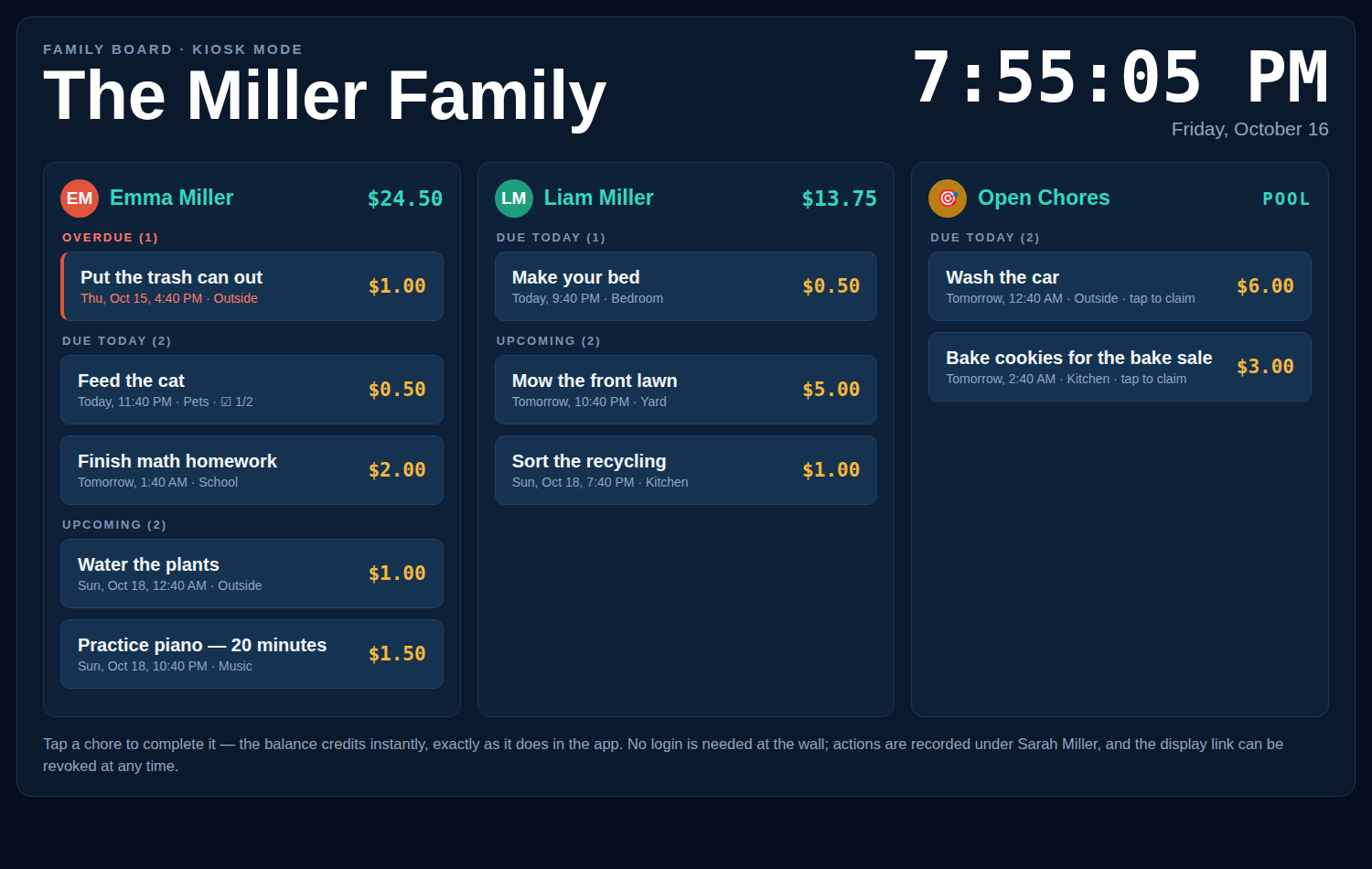
- The board refreshes itself every 5 minutes, and tapping the clock reloads it right away.
- Kids tap a chore to open its card, pick Mark Complete or Remove Incomplete, and tap Save. No small edge buttons to mis-tap.
- For an Open Chore, the board asks who did it and credits that person, not whoever set up the screen.
- The clock shows your family’s time, and completions still email the adults, exactly as they do from the app.
Honest notes for genuinely old iPads
- Tired battery? Irrelevant. A kiosk lives on its charger, so an iPad that only holds an hour of charge is still a perfect board.
- Too old for the App Store? Also irrelevant. There is no app. Open the link in Safari, and if the board loads, you are done. That one page is the whole test.
- Screen on all day? That is the point of a board, and it is why Auto-Lock is set to Never in two places above. If you would rather it slept at night, exit Guided Access and lock it like any iPad. Nothing about the board changes.
- No iPad in a drawer? The same display link works on any old tablet, a spare phone, or a TV browser. The iPad is just the device most families already have lying around.
Frequently asked questions
Which iPads are too old for kiosk mode?
Almost none. There is no app to install: if Safari on the iPad can load the display link page, the board works. That one page loading is the whole test.
Do I need the App Store at all?
No. You open the link in Safari, add it to the Home Screen so it launches full-screen, and lock it in place with Guided Access. An iPad too old for current apps handles all of that fine.
Will the screen stay on all day?
That is the point of a wall board, and the setup sets Auto-Lock to Never and keeps the iPad on its charger, so a tired battery does not matter. If you would rather it slept at night, exit Guided Access and lock it like any iPad; the board itself does not change.
Can I lock the iPad to just the chore board?
Yes. Guided Access keeps the iPad in the board view until you leave it with your passcode, so kids see chores and nothing else.
What if we do not have an old iPad?
The same display link works on any old tablet, a spare phone, or a TV browser. The iPad is just the device most families already have in a drawer. See kiosk mode for how display links work.
Your chore board is already in a drawer
Free family account, free kiosk mode, $0 of new hardware. Set up the board, make a display link, and give that old iPad a second career.